The Fastest Way to Make Great Looking Flowcharts
FlowBreeze - Flowchart Add-in For Microsoft Excel
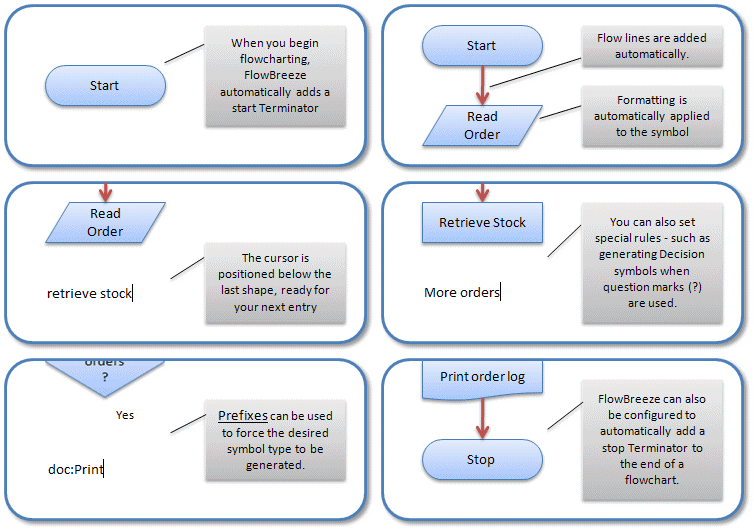
FlowBreeze flowchart software is a Microsoft® Excel® add-in that automates the process of making flowcharts by generating flowchart shapes from your text. FlowBreeze lets you create flowcharts by just typing. You simply type in each flowchart step, and press Enter. The text is replaced by a flow chart symbol. Formatting is applied, symbols are aligned, and a connector arrow is added automatically.
Save Time
FlowBreeze is the perfect tool for creating flowcharts because it makes flowcharting easy. You will benefit from many handy features that save you time and make flowcharting painless:
- Create flowcharts just by typing.
- Pre-layout flowchart content on a spreadsheet.
- Convert existing text or documents (e.g. Word) into a flow chart with the Text-To-Flowchart Wizard.
- Automatically add Start and End Terminator symbols.
- Assign keywords to generate specific flowchart symbols.
- Generate Org Charts from a list of employees and supervisors.
Make Flowcharting a Painless Process
- Apply formatting styles in a single click.
- Generate a flowchart symbol key at the click of a button.
- Automatically add connectors from the previous symbol.
- Create uniformly sized shapes.
- Design custom cross functional (swim lane) templates.
Be Creative
- Style your flowchart symbols with 84 built-in formats.
- Style your connectors with 21 built-in formats
- Includes 124 available symbols, including flowchart symbols, block arrows, callouts and more.
- Add straight, elbow, or curved connectors.
- Export flow charts as 5 picture formats (PNG, BMP, JPG, GIF, TIF).
Collaborate
- Embed editable flowcharts directly into Word or PowerPoint.
- All flowcharts are editable by anyone using the built-in Microsoft Office drawing tools.
- Save flowcharts as Excel files.
- Anyone with Excel can view, edit, or maintain the flowcharts.
Empower Your Team
- Easy to use and easy to learn.
- Affordable pricing.
- Familiar Microsoft Excel working environment.
- Users can get started at the click of a button.
- Helpful Getting Started guide makes flowcharting simple to learn.
Combine Data & Diagrams
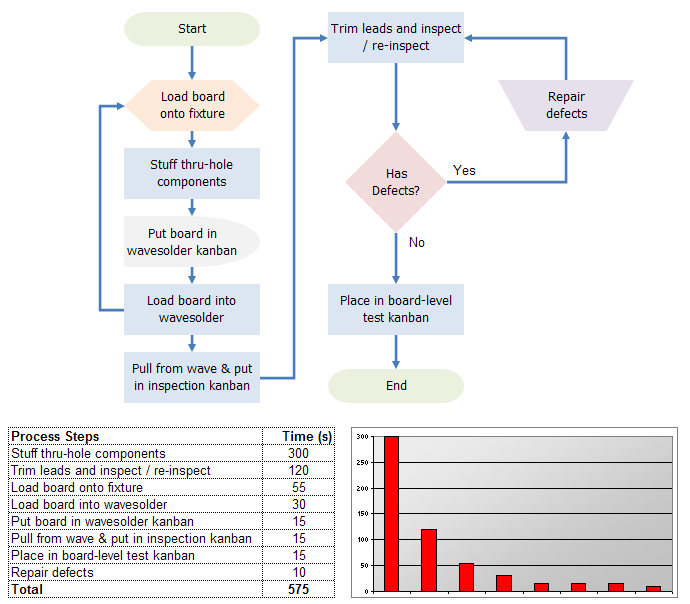
- Include process data on the same sheets as your flowcharts.
- Use FlowBreeze's Extract Text tool to easily tabulate process metrics.
- Exploit Excel's powerful functions to merge flowcharts with process data analysis.
- Integrate graphs, data, and process flowcharts in the same drawing.
- Create multi-level process flow diagrams on separate sheets.
Save Money
- Create flowcharts in a fraction of the time.
- Other Text-To-Flowchart tools run for more than 4X the cost of FlowBreeze.
- Anyone with Excel can edit the flowcharts without extra licenses.
- Reduce overhead by maintaining a single file in your document control system.
- Volume discounts and site licenses available.
Edit Flowcharts Easily
- Select multiple shapes by symbol type.
- Toggle between shapes via the Tab key.
- Move symbols with the keyboard arrow keys.
- Connectors stay attached when the shapes are moved.
- Insert or delete cells, rows, or columns for fast re-positioning.
Automate Many Flowcharting Steps
- Create Decision symbols (diamonds) by typing a '?'.
- Create On-Page Connector references by typing all caps (e.g., A, A1, BB, etc.).
- Automatically add branch labels (e.g., Yes/No) to Decisions.
- Create Off-Page Connector references by typing numbers.
- Create prefixes that generate specified symbol types.
- Insert a flow line connector by typing "FL".
- Add comments using callout symbols.
- Insert a text box label by typing "LBL".
Enforce Good Flowcharting Style Effortlessly
- Automatically align shapes as they are created.
- Preset all your formatting.
- Auto-capitalize the first letter of every entry.
- Enable entry "guidelines" to ensure proper symbol alignment.
- Snap to grid and snap to shape for easy positioning.
Customize Your Drawing Canvas
- Span multiple pages in a single flowchart canvas (and display page breaks while flowcharting).
- Preset page size, margins and orientation.
- Customize the list of your favorite symbols.
- Toggle gridlines on or off.
- Automatic cursor positioning for top-to-bottom or left-to-right layouts.
Friendly Flowcharting Environment
- Eliminate most (wrist-aching!) drag and drop steps.
- Insert pictures in symbols or directly on the drawing.
- Isolate flowcharting to a single worksheet without interfering with your other work.
- Stop and restart flowcharting at any time.
- Lets you generate a flowchart on the fly by copying the process steps from Word.
Our Guarantee
- No hassle 30-day money back guarantee.
- Secure online payment processing.
- No malware or viruses.
- Free trial download.
- Digitally signed to ensure trust.
How To Order
- Buy online for immediate license delivery.
- Secure payment processors. (FastSpring and PayPal)
- Site licenses are available.
- Pay by credit card, PayPal, wire transfer, check, or Purchase Order. (W-9 available upon request)
System Requirements
- Excel: 2010 - 2019 (Office 365)
- Supports 32-bit and 64-bit Excel
- Windows: 7, 8, or 10
- .NET Framework: 4.0 or later
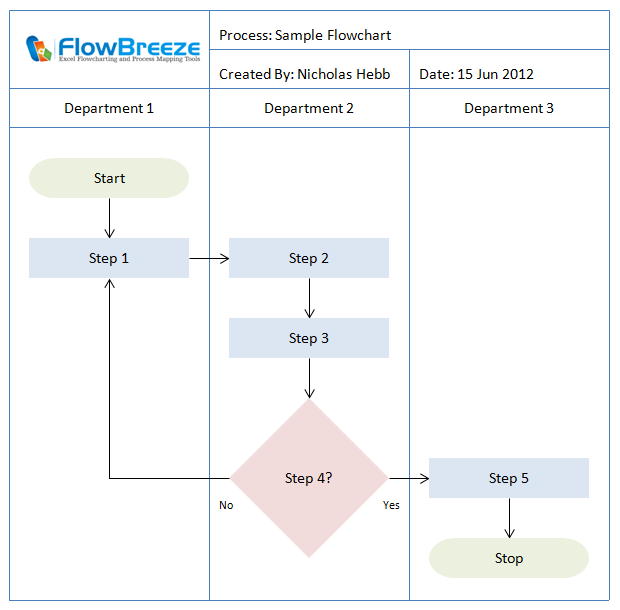
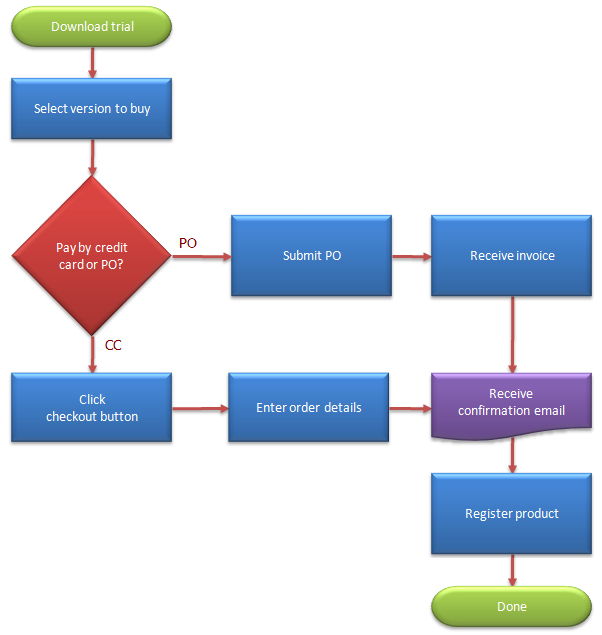
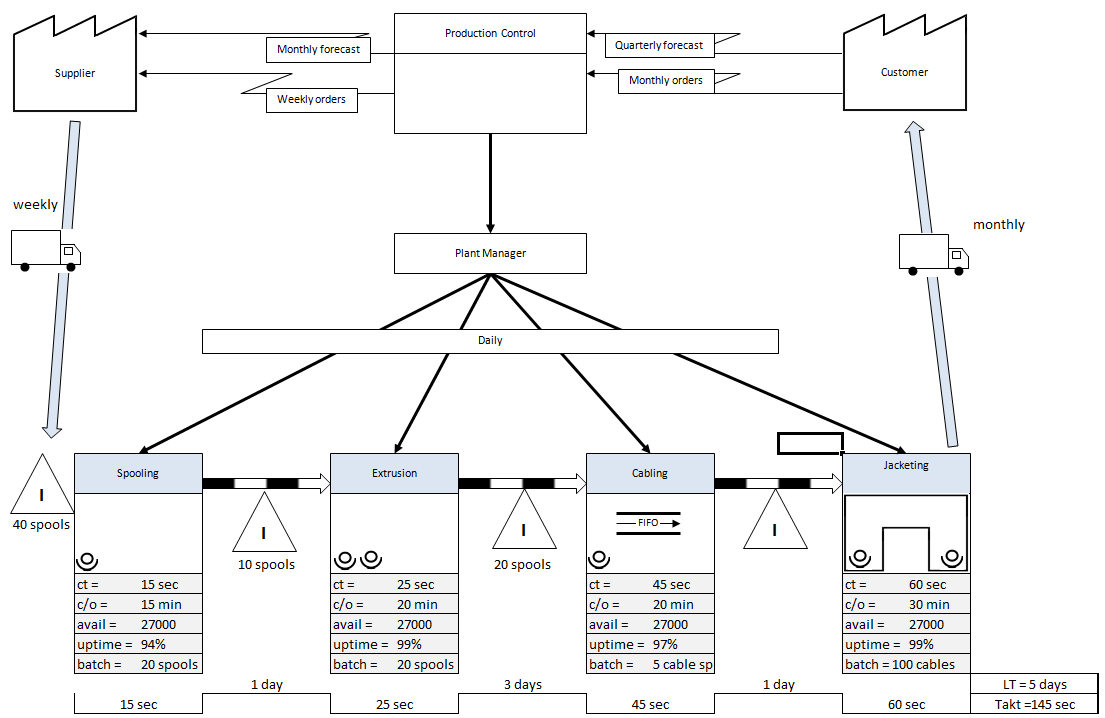
Sample Flowcharts (click to zoom)
Testimonials
Thanks for making the only useful flowcharting software I've ever encountered. Every time I break the tool out, I get the warm fuzzies associated with being productive.
- Mike Helmecki
Market Tools
My co-worker and I are thrilled with your software. We've had a project that has involved drawing a lot of flow charts and I just can't imagine having done all of this in Visio - it would have taken forever.
- Michelle Benson
I love the software and there is nothing like it on the web. Thanks so much for creating a great piece of software.
- Kip Niswonger
Best of Tampa
Once again I have say yippee for FlowBreeze... its trick of turning text into flowcharts is little short of magnificent!
- Steve Homer
Freelance Journalist
If you have Excel, get FlowBreeze. Works simply and easily - just as advertised. You'd be amazed how much clearer things are when you flow chart them.
John Seiffer
Business Coach
Most of the work I have used it for doesn't call for the hyper complexity of many of your competitors, it just needs the clarity of visualization in a flow chart. The free trial completely convinced me.
Paul Hensley
CEO, Microlab Diagnostics