BreezeTree Home FlowBreeze Flowchart Software Top  Previous  Next
FlowBreeze Help Introduction
Table of Contents
 Interactive Flowcharting
Step 1 - Start Flowcharting
Step 2 - Add Symbols
Step 3 - Add Decision
Step 4 - FlowBreeze Prompts
Step 5 - Stop Flowcharting
 Flowchart Wizard
Parsing Rules
Transpose column to rows
Apply parsing syntax
 Template Generator
Load Template
Create Custom Templates
 Settings
Settings - Symbol List
Edit Symbol List
Symbol Styles
Settings - General
Settings - Decisions
Settings - Flow Line Connectors
Flow Line Connector Styles
 Toolbar / Ribbon
Excel 2000 - 2003 Toolbar
Excel 2007 - 2010 Ribbon
 FlowBreeze Tools
Apply Styles
Clear Shading
Create a Grid
Create a Symbol Key
Export as Picture
Extract Text
Flowchart Editor
Insert Branch
Insert Connector
Insert Group Box
Shape Selection Tool
View Gridlines
 User Interface
Start Window
Restart Flowcharting
Flow Line Prompt Window
 Editing Tips
Deleting Symbols
Inserting Symbols
 How Do I...
Add an Assist Line to a Swim Lane Diagram
Change Symbol Styles
Change a Symbol Type
Check for Updates
Copy a Flowchart to Word or PowerPoint
Edit Symbol Text
Edit the Symbol List
Insert a Flow Line (Connector)
Insert a Hyperlink
Insert a Label / TextBox
Move Symbols
Resize Symbols
Rotate a Symbol
Select Symbols
Snap Objects
Use Keywords and Prefixes
Work with Grouped Symbols
Work with Connectors
FlowBreeze Support
Troubleshooting
FlowBreeze License Agreement

Apply parsing syntax

This feature is available in the Standard Edition only.


The Apply Parsing Syntax tool will take plain text entries and add entry ID's, connector ID's, and branch label syntax.


Why Is This Tool Needed?


First of all, running this tool is not required before using the Flowchart Wizard. However, it is useful for complex processes. By applying the parsing syntax before running the Flowchart Wizard, you can edit the connector routings and branch labels on the worksheet instead of in the Flowchart Wizard dialog. Spreadsheets are easy to edit, so applying the syntax before running the wizard makes fine tuning the entries much easier.


Picture 1 - Apply Parsing Syntax screen

Picture 1 - Apply Parsing Syntax screen


Direction: This determines how the entries on the worksheet will be numbered.

Output: You can output the parsing syntax to a new worksheet or overwrite the existing one. There is no undo operation if you overwrite the existing sheet, so outputting to a new worksheet is a recommended precaution.


Example


The following picture shows a simple process before running the Apply parsing Syntax tool:
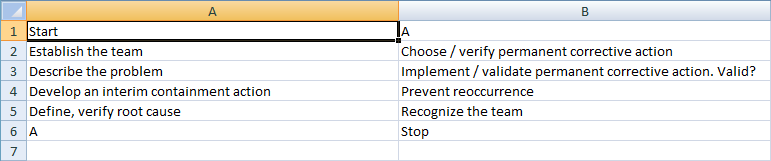
 

Picture 2 - Sample process steps before applying parsing syntax

Picture 2 - Sample process steps before applying parsing syntax


After running the tool, the text has been transformed as shown in the following picture:
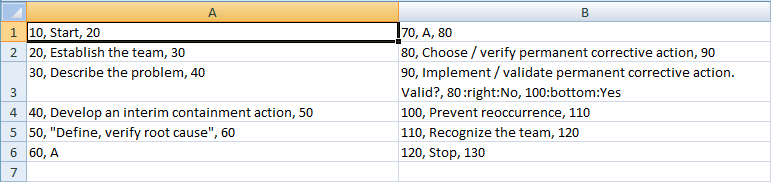
 

Picture 3 - Process steps after applying parsing syntax

Picture 3 - Process steps after applying parsing syntax


There are several things to note in the above picture.

Each entry has an ID placed before the text.
Each entry has connectors identified after the text.
Any entries containing commas are enclosed in quotes.
Decision shapes have default connector and branch label syntax added.
There is a comment added to the Decision cell stating that it will need to be edited, because there is no reasonable way for FlowBreeze to guess where the decision branches should be routed.


There are two entries that need to be edited:

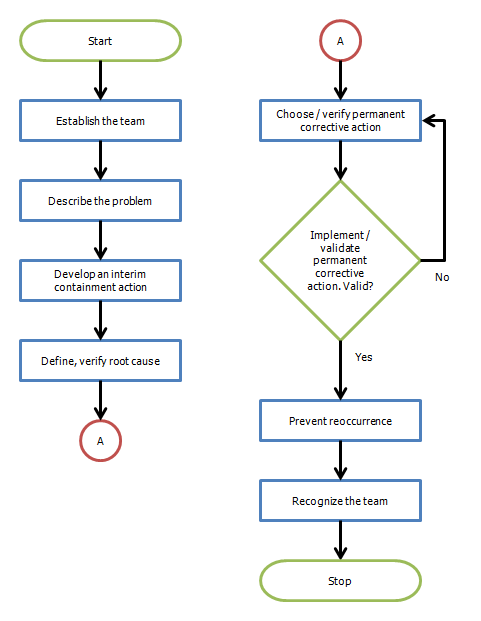
1.Entry 6: The "A" will generate a connector node (as shown in Picture 5 below), so we will remove the connector to entry 7.
2.Entry 9: We will replace the "10:right:No" connector with "5:left:No", which means that a connector will be routed to entry 5 out of the left side and have a branch label containing the text "No".


Here is the same process after we have edited the two entries:


Picture 4 - Process entries after editing

Picture 4 - Process entries after editing


Finally, we can run the Flowchart Wizard, selecting the Parsed option, and the wizard will genearate the following flowchart:


Picture 5 - Generated Flowchart

Picture 5 - Generated Flowchart


©2006-2011 BreezeTree Software, LLC. All Rights Reserved.