Load Template
Where are the templates?
When FlowBreeze first runs, it will create a My Flowcharts folder in your Documents folder and place any templates you've created in a Templates sub-folder.
Loading templates
Templates can be loaded two ways:
- Via the toolbar: Click Templates > Load Template button to launch the Select Template File dialog below.
- Via the Start Flowcharting window: Under the Drawing Area section, choose the Load a template option.
After clicking Open, the template will be loaded into a new worksheet.
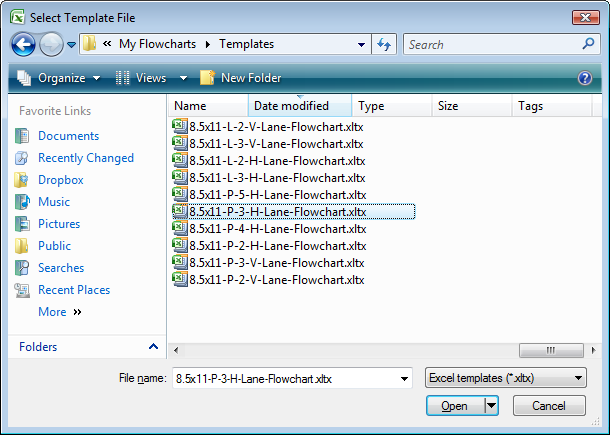
Naming convention for pre-made templates
Pre-made templates can be downloaded from the breezetree.com web site. (although, we recommend creating your own flowchart templates). The pre-made templates pack a lot of information into the names. The syntax is:
page size - orientation - number of lanes - lane direction - "lane flowchart"
- Paper size: The Template Generator supports 8.5x11, 11x17, A3, and A4. You can manually create other paper sizes.
- Orientation: P = portrait and L = landscape.
- Number of lanes: Number of swim lanes.
- Lane direction: V = vertical (top to bottom) and H = horizontal (left to right).
Example: 8.5x11-P-2-H-Lane-Flowchart would be read 8-1/2 x 11 Portrait 2 Horizontal Swim Lane Flowchart.
Related
- Template Generator - how to create a template using FlowBreeze.
- Creating Custom Templates - how to manually create a template (without the Template Generator).