Selecting Shapes
There are several different methods used to select symbols. Methods 1 and 2 are god when selecting a few nearby shapes. Methods 3 and 4 are more suitable for selecting multiple shapes.
Method 1 - Mouse click
If you want to select a single symbol, click on it with your mouse. However, this can be a little tricky if the symbol contains text or if the border is not visible. If the symbol contains text, you need to click on the border of the symbol, otherwise, clicking in the center will select the text frame inside the symbol. If you already have one or more symbols selected, you can select additional symbols by holding the Shift key down while you click on other symbols. If the symbol has no border (such as a text box used for a branch label), then you can either click around the region until it's finally selected or use Method 2 (recommended).
Method 2 - The Select Objects cursor
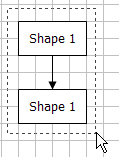
This cursor can be accessed by clicking Select Objects from the FlowBreeze toolbar. This will change the mouse pointer to a thick white arrow. You can then select symbols by clicking on the sheet with the left mouse button and dragging around one or more symbols that you wish to select. The symbols must be completely enclosing within the dashed line boundaries, as show in the picture below. If you release the left mouse button with only half of the symbol encompassed, it will not be selected.
Important: If you use this tool, you cannot select worksheet cells until you click Select Shapes again or double-click on a worksheet cell to toggle it off.
Method 3 - The Shape Selection tool
The Selection Tool is a special FlowBreeze window that allows you to filter the selection by shape type. More details on how to use it can be found by clicking here.
Method 4 - The Select Shapes menu tools
- Select All: Selects all the flowchart shapes, connectors, and labels on the current worksheet.
- Flowchart Symbols: Selects only the flowchart shapes, connectors, and labels on the current worksheet.
- Connectors: Selects only the connectors on the current worksheet.
- Labels: Selects only the flowchart labels (borderless text boxes) on the current worksheet.