Template Generator
(Note: The Value Stream Mapping Template Generator is covered here.)
To create a template click Templates > Create Template from the toolbar. The Template Generator allows you to design flowchart templates, including cross functional (swim lane) layouts. The Template Properties and Title Block settings are saved between uses. Once they are set, new templates can be created very quickly.
Template Properties tab
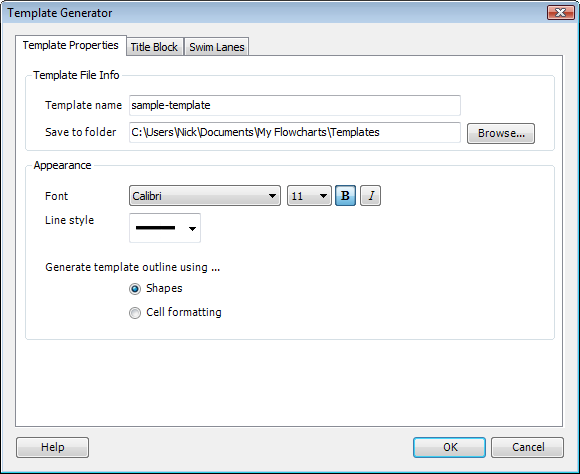
- Template name: The file name that the template will be stored as.
- Template folder: The folder that the templates will be stored in. The default location is "\My Flowcharts\Templates" under your Documents folder.
FlowBreeze does not use the built-in template folder in Excel because that folder is hidden in some versions of Windows.
- Font: Sets the font for the title block fields and swim lane labels.
- Line style: Sets the line color and thickness for the title block and swim lane outlines.
- Generate template outline using ...
- Shapes: This option is better if you want to copy and paste the flowchart into another document.
- Cell formatting: This option makes the template easier to manually edit.
Title Block tab
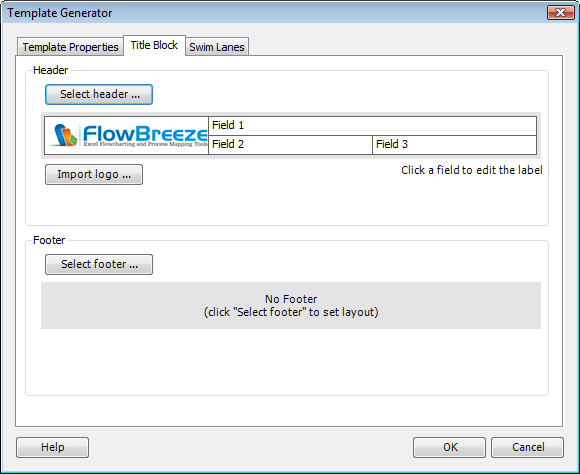
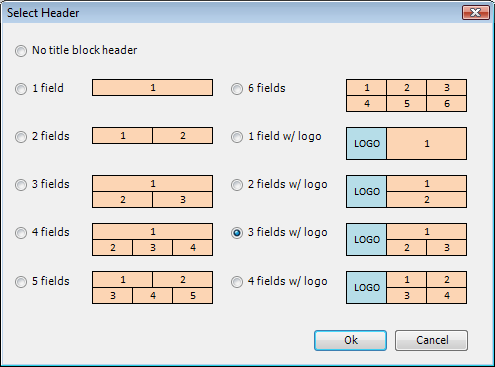
- Select header: Clicking this will open the Select Header window shown below left. In this sample, we've selected the "3 fields w/ logo" option.
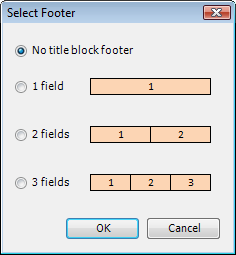
- Select footer: Clicking this will open the Select Footer window shown below right. In this sample, we've opted for no footer.
- Import logo: Clicking this will allow you to import your logo into the template. Logos are automatically resized to fit the available space.
|
|
Swim Lanes tab
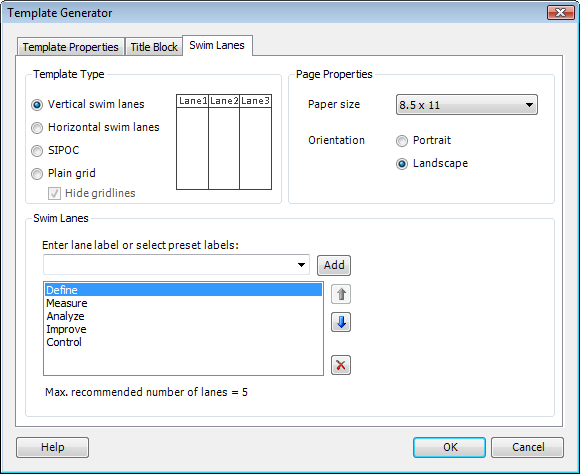
- Template Type: click the option for the type of flowchart you wish to create - vertical swim lanes, horizontal swim lanes, SIPOC, or just a plain grid with a title block. Note, SIPOC (Suppliers, Inputs, Process, Outputs, Customers) is a special layout with a open area in the center for creating the flowchart.
- Paper size: FlowBreeze supports 8-1/2x11, legal, 11x17, A3, and A4 paper sizes. Important: your printer must support these page sizes in order to properly set the page properties.
- Orientation: Select portrait or landscape.
- Swim Lanes:
- Enter the text for each lane label then click the "Add lane" button. The text can be left as generic (e.g. "lane 1", Lane 2", etc.) and changed after the template is loaded at the time of use.
- Or, select a set of swim lanes from the drop down list.
- The "Max. recommended number of lanes = " shows the number of lanes that will fit inside a single page boundary for the paper size and orientation you have selected.