Troubleshooting
Installation Error
If you receive an error message during installation, the following items cover nearly all the cases reported to our support:
- The majority of installation problems are solved by running the Admin-Level Setup, which is available on the BreezeTree Downloads page. As the name implies, it does require administrative privileges on your system. Depending on your organization's policies, you may need to have your IT department install it for you.
- FlowBreeze runs on Windows only. (Sorry - we are not able to provide a Mac-compatible version.)
- If you have previously installed FlowBreeze, you must uninstall the older version before installing the updated one.
FlowBreeze Ribbon (Toolbar): If the FlowBreeze ribbon tab does not appear when you open Excel, please follow these steps to troubleshoot the problem.
1. Per User Installation
The default installer does not require administrative privileges and will install for only the currently logged in user. If you, or someone from your IT department, logged in under an admin account to install FlowBreeze, it will only be available in Excel to the admin login account. To fix this problem, there are two options: (1) Uninstall FlowBreeze and reinstall it under the user's account. (2) Uninstall FlowBreeze, and then download and install the admin installer from the BreezeTree downloads page, which will install for all user profiles on the system.
2. Check the Disabled Items list
Excel 2010 - 2019
- Click the File tab on the Excel ribbon.
- Click the 'Excel Options' button in the left menu.
- Click 'Add-Ins' in the left menu of the Excel Options window.
- Click the 'Manage' drop down, select 'Disabled Items' from the list, then click the 'Go…' button.
- If FlowBreeze is listed, select it and click the 'Enable' button, then restart Excel.
Excel 2007
- Click the Office Button in the upper left corner of Excel.
- Click the 'Excel Options' button on the bottom-right corner of the window.
- Click 'Add-Ins' in the left menu of the Excel Options window.
- Click the 'Manage' drop down, select 'Disabled Items' from the list, then click the 'Go…' button.
- If FlowBreeze is listed, select it and click the 'Enable' button, then restart Excel.
3. Check the COM Add-ins list
Excel 2010 - 2019:
- Click the File tab on the Excel ribbon.
- Click the 'Excel Options' button in the left menu.
- Click 'Add-Ins' in the left menu of the Excel Options window.
- Click the 'Manage' drop down, select 'COM Add-ins' from the list, then click the 'Go…' button.
- If FlowBreeze is listed, make sure the checkbox next to it is checked.
Excel 2007:
- Click the Office Button in the upper left corner of Excel.
- Click the 'Excel Options' button on the bottom-right corner of the window.
- Click 'Add-Ins' in the left menu of the Excel Options window.
- Click the 'Manage' drop down, select 'COM Add-ins' from the list, then click the 'Go…' button.
- If FlowBreeze is listed, make sure the checkbox next to it is checked.
4. Check the security settings
Excel 2010 - 2019:
- Click the File tab on the Excel ribbon.
- Click the 'Excel Options' button in the left menu.
- Click "Trust Center" on the left navigation panel.
- Click the "Trust Center Settings" button.
- The "Message Bar" panel should be open by default. Make sure that the "Show in Message Bar..." option is selected.
- Next, click "Add-Ins" from the left menu and set the options per the Add-ins Options section below.
Excel 2007:
- Click the Office Button in the upper left corner of Excel 2007.
- On the bottom-right of the popup menu, click the "Excel Options" button.
- Click "Trust Center" on the left navigation panel.
- Click the "Trust Center Settings" button.
- The "Message Bar" panel should be open by default. Make sure that the "Show in Message Bar..." option is selected.
- Next, click "Add-Ins" from the left menu and set the following options;
Add-ins Options
-
Option 1:
- Check the box labeled "Require Application Add-ins to be signed by Trusted Publisher"
- Uncheck "Disable notification for unsigned add-ins"
- Uncheck "Disable all Application Add-ins"
-
Option 2: (not recommended)
- Leave all the settings on this panel Unchecked.
Excel needs to be restarted for these security changes to take effect. If you selected Option 1, then the next time you restart Excel, follow the steps in Security Warning - Enable FlowBreeze (below).
5. Security Warning - Enable FlowBreeze
If "Require Application Add-ins to be signed by Trusted Publisher" is checked in the Excel Trust Center (see the section above)., you will see a warning when you open Excel after installing FlowBreeze. The actions differ slightly between Excel versions.
Excel 2010 - 2019:
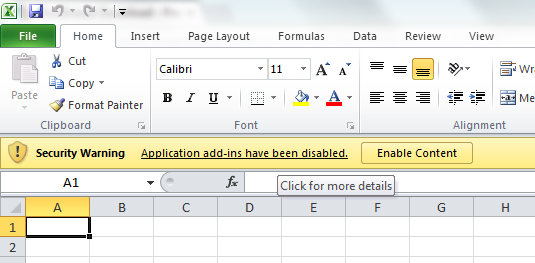
If you see the security message shown below, click the "Application add-ins have been disabled" label. (Clicking "Enable Content" will enable it only for the current session).
 :
:
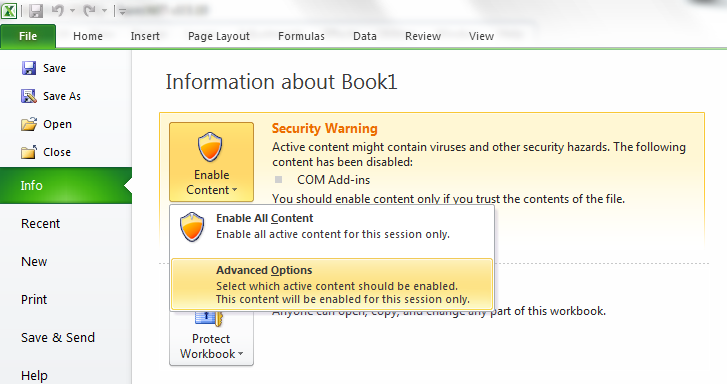
Excel will show the info screen below. Click the "Enable Content" dropdown and select "Advanced Options".
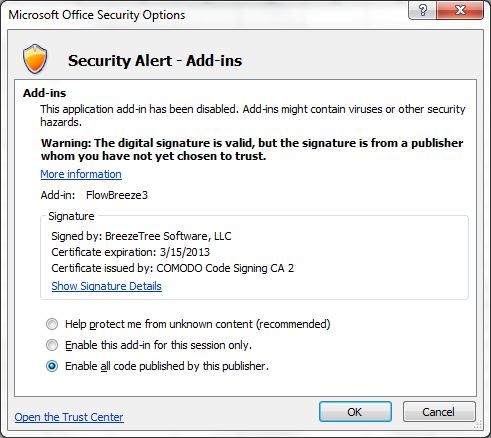
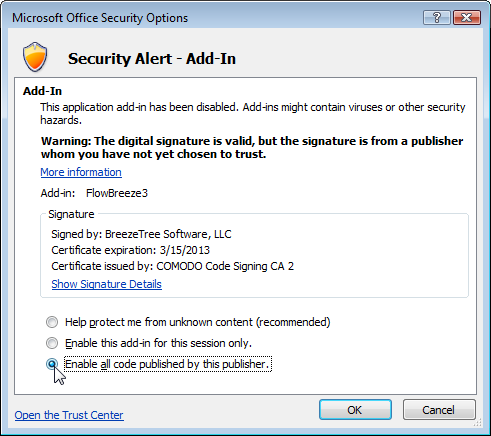
On the security options dialog, select "Enable all code published by this publisher" and click OK.
Excel 2007:
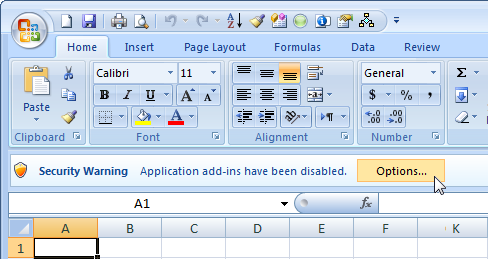
If you see the security message shown below, click the "Options" button.
On the security options dialog select "Enable all code published by this publisher" and click OK.
6. Installation - restart required
If Excel was running during the installation, it will need to be re-started again for the FlowBreeze toolbar to display.
7. Download Source
Did you download the program from www.breezetree.com? The BreezeTree website is the only official site for downloading FlowBreeze. To get the latest version, download FlowBreeze only from www.breezetree.com. Download sites (including popular ones such as download.com) often host old versions of FlowBreeze. Downloading from any other site is not recommended.
Other
If the above checks didn't reveal the problem, please contact BreezeTree at support@breezetree.com. The following information would be helpful to determine the root cause.
- What version of Excel are you running?
- What Windows version are you running?
- Are you running any other add-ins in Excel?