Flowcharting in Excel Series
Grouping Flowchart Shapes
By Nicholas Hebb
What is Grouping?
The Group function takes all the shapes that you have selected and creates a single shape out of them. Grouping binds all the shapes into set positions, and it lets you perform actions (e.g., movement, copying, formatting) on the group as a whole instead of one shape at a time.
Reasons to Use Group
Printing: If you print a flowchart that is ungrouped, Excel can sometimes omit the text in the bottom shapes or truncate the lines along the left and right edges. Luckily, few systems are affected by these bugs. but if you experience one of these problems, grouping the flowchart before printing oftens resolves the issue.
Alignment: After creating a flowchart, you may want to align it horizontally or vertically on the page. If you do a print preview (then close it), you can see the page break lines on the worksheet. Turning on Snap to Grid and Grouping the flowchart, you can easily center the flowchart by clicking and dragging it into alignment.
Ease of Selection and Copying: If you need to copy the flowchart to another file, such as a Microsoft Word document or an image editor, working with a Group makes this much easier, since you only have to copy and paste the flowchart as a single item.
Protection: Grouping acts as a protection mechanism for the overall layout of your flowchart, so you don't accidentally drag an individual flowchart symbol out of alignment.
Offset Correction: If you have an older version of Microsoft Excel and open a file containing a flowchart drawing, you'll sometimes find that all the flowchart symbols that you took such great care to line up aren't lined up anymore. The difference is usually slight and hardly noticeable - until you start to edit the flowchart again. Then you'll notice that the flow lines (connectors) between flowchart symbols aren't quite straight anymore. By Grouping before saving, you can just select the entire flowchart as a single item and realign it to the drawing grid in a single step.
Excel Flowchart Wizard
FlowBreeze is a flowchart add-in for Microsoft Excel that makes creating flowcharts simple and pain free. Free 30-Day Trial.How to Group Shapes
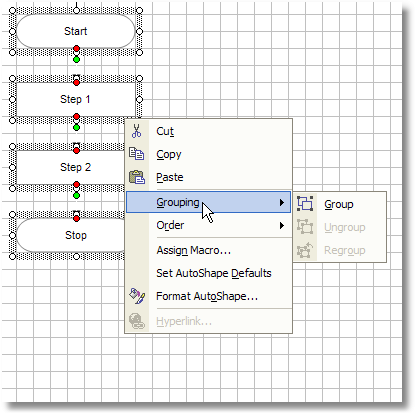
After you've completed your flowchart and made sure all the shapes are uniformly sized and aligned, you may want to use the Group function before saving. The easiest way to group objects together is to select them all, then right click over the selection. On the context menu (popup menu), select the Grouping > Group, as shown in the image below.
About the Author
Nicholas Hebb
Nicholas Hebb is the owner and developer of BreezeTree Software, makers of FlowBreeze Flowchart Software, a text-to-flowchart maker, and Spreadspeed, an auditing and productivity toolset for Microsoft Excel®.