Flowcharting in Excel Series
How To Hyperlink Excel Flowchart Autoshapes
By Nicholas Hebb
3 Common Reasons for Putting Hyperlinks in Flowchart Shapes
This article will show you how to put hyperlinks in Excel flowchart shapes. The are several common reasons for adding hyperlinks to flowchart shapes:
- You would want to link to another document. This is common in flowcharts for ISO 2001:9000 procedures and work instructions, for example, where referencing other documents is common.
- You want to link one part of a flowchart to another part of the flowchart, such as parent and child processes or connector points on a flowchart (where "connector" in this context means a labeled node that jumps to another labeled node in the flowchart).
- You want to link to a web page or email address.
To add a hyperlink to an Excel flowchart symbol (or any other Microsoft Office Autoshape for that matter), you need to right-click on the perimeter of the flowchart shape and select Hyperlink from the bottom of the context menu. This opens the Insert Hyperlink form. (If Hyperlink is grayed out, then you probably right-clicked on the text inside the flowchart shape.)
Excel Flowchart Wizard
FlowBreeze is a flowchart add-in for Microsoft Excel that makes creating flowcharts simple and pain free. Free 30-Day Trial.Adding a Hyperlink from a Flowchart Shape to a File or Web Page
As shown in the picture below, the first option the Insert Hyperlink dialog presents is the option to insert a hyperlink to a file or web page. For a web page you enter a URL, and for a file you enter the path. One thing to consider when you enter a file path is where this flowchart will be stored and who will access it. If the Excel flowchart file is stored on the network you should make sure you use the full UNC path instead of just mapped drive path. This is a great way to link a Predefined Process step to another document.
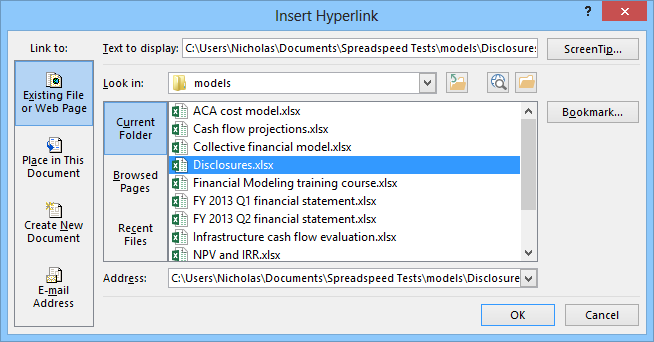
Insert external hyperlink.
(This is an image from Excel 2013, but the dialog is the same in all versions of Excel.)
Adding a Hyperlink from One Flowchart Shape to Another Flowchart Shape
It would be really cool if Excel let you click on a shape and expand out a detailed flowchart for a high-level process step. Likewise it would be cool if you could click again and collapse a series of flowchart process steps back into a single high-level step. Unfortunately you can't. Your best alternative is to hyperlink one flowchart autoshape to another flowchart autoshape.
As shown in the next picture, the Insert Hyperlink dialog lets you link to another location in the same Excel file. You can either link to a cell by reference or by using defined Names. In the image below, selecting "SubProcess1" is the same as selecting the sheet name "Parent" and entering a cell reference of V56". Named ranges are a little more robust and the links are less likely to break.
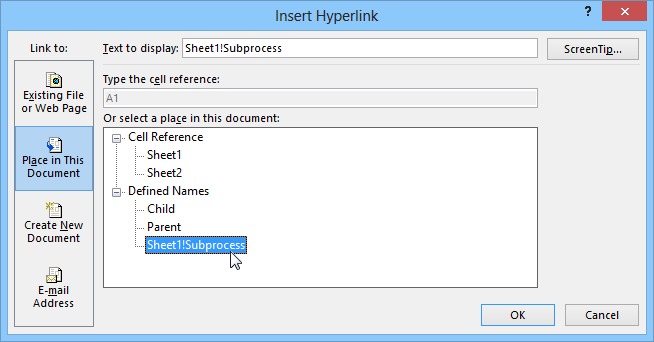
Insert internal hyperlink
You cannot link from one flowchart shape to another flowchart shape. Excel will even let you create a defined name for a shape, but it doesn't show up in the list of defined names shown below. The only viable option is to link to a worksheet cell underneath or adjacent to a flowchart shape. Note that if you move the flowchart shapes around, the link target will not move with the shape.
Flowchart Linking Example
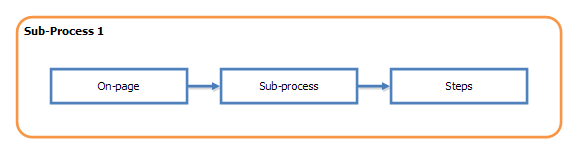
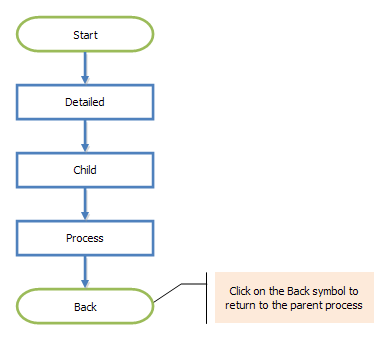
The three images below show parent process linked to two sub-processes.
The first sub-process is contained on the same sheet as the parent process. The sub-process is clearly identified with a labeled border (which can be done using the the Insert Group Box tool in FlowBreeze). In this case, adding the hyperlink is optional and usually not necessary.
The second sub-process is on the sheet named "Child". In the worksheet cell directly under the Start symbol of the child process, there is a Named range called "ChildCell" (using Insert > Name > Define in Excel 2000-2003 or via the Formulas tab in Excel 2007 - 2013). To add a link from the parent process step labeled "Sub-Process 2" the hyperlink was made to the "ChildCell" item under Defined Names as shown in the image above.
Likewise, the last symbol in the child process, labeled Back, is linked to the cell directly under the "Sub-Process 2" step in the parent flowchart. This cell is named "ParentCell" as shown in the image above.
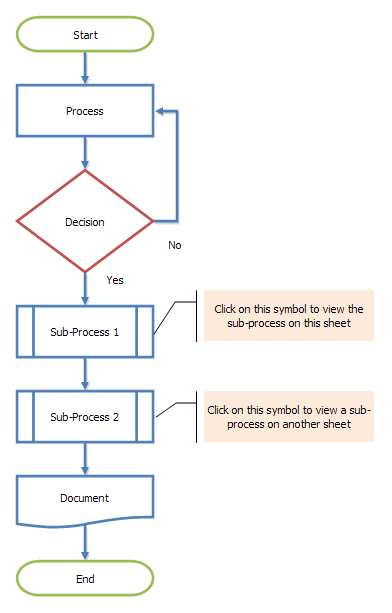
Child process on same sheet (Sub-Process 1):
Child process on another sheet (Sub-Process 2):
Adding a Hyperlink from a Flowchart Shape to an Email Address
The last way to create a link is to link to an email address. As the picture below shows, it's pretty straight forward. As with all the hyperlinks, Excel lets you add a screen tip that pops up when you hover your mouse over the hyperlink. To set this text, click the Screen Tip button and enter the text.
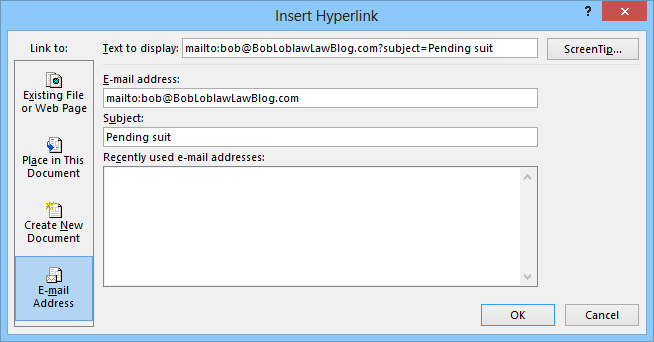
Insert email hyperlink
About the Author
Nicholas Hebb
Nicholas Hebb is the owner and developer of BreezeTree Software, makers of FlowBreeze Flowchart Software, a text-to-flowchart maker, and Spreadspeed, an auditing and productivity toolset for Microsoft Excel®.