Flowcharting in Excel Series
How to Save Excel Flowcharts to PDF
By Nicholas Hebb
This article covers both how to save a flowchart created in Excel to PDF and how to deal with some of the issues that occur with different PDF generators. If you experience any problems, make sure to read the PDF Printing Tips and Known Excel / PDF Issues + Failsafe Method sections at the end of this article.
Excel Flowchart Wizard
FlowBreeze is a flowchart add-in for Microsoft Excel that makes creating flowcharts simple and pain free. Free 30-Day Trial.Saving As PDF - by Excel Version
Excel 2010 - 2019: Since Excel 2010, saving to PDF is a built-in option.
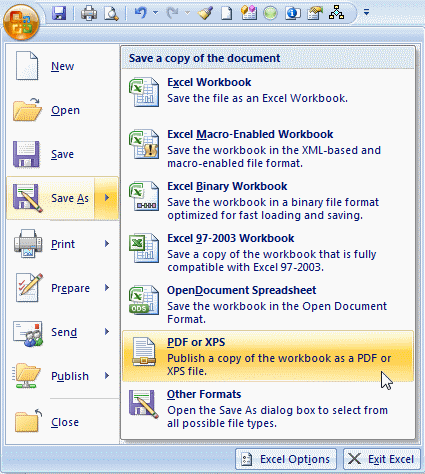
Excel 2007: Excel 2007 was not released with built-in save as PDF capability, but they did release an add-in that can be downloaded from their website. After installing the add-in, the PDF option will be available in the save as menu, as shown in the image below.
Excel 2000, XP, and 2003: There is no integrated PDF tool for Excel offered by Microsoft for the older versions of Excel.
Printing to a PDF Driver
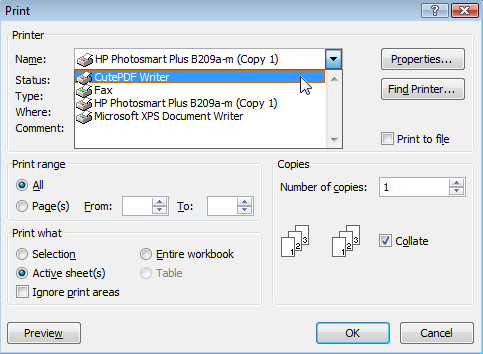
It may seem odd, but when you use a PDF driver like CutePDF or PDF995, you don't save the file as you might expect. Instead, you select the PDF print driver and print to PDF. CutePDF or PDF995 will appear in the list of printers available on your system. To print to a PDF file, you would follow these steps:
- Click File | Print from the Excel menu.
- Select the print drive from the list of printers, as shown in the image below.
- Click OK to print.
- Enter the file name in the next dialog.
- After printing, re-open the print dialog, change the printer back to the default, then click Close.
PDF Printing Tips
- Before saving to PDF, make sure that the flowchart fits within the page boundaries by doing a Print Preview. After the preview is closed, the dashed page break lines will be displayed on the worksheet. Move shapes around as needed to fit.
- If lines traverse page pages, break the line in two with Off-Page Connectors.
- Keep the print scaling at 100%. Scaled flowcharts often render the text unreadable.
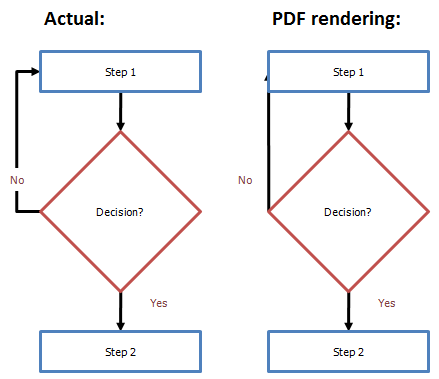
- When elbow connectors appear near a page break, they can often be flattened by the print driver, as shown in the image below. If this occurs, there are two ways to fix this. First, right-click on the connector arrow and select Format Autoshape. Go to the Lines section of the Format Autoshape window and change the line thickness to 2pt or less (note: FlowBreeze does this automatically when connector arrows are created). The second fix is to Group all the shapes on each page before printing.
Known Excel / PDF Issues + Failsafe Method
Historically there have been a number of issues between generating PDF's from Excel spreadsheets. While this article focuses on saving flowcharts to PDF, the problems have been known to affect worksheet content and graphs as well. If you do not get good results using the methods described in this article, then there is one failsafe method:
- Copy the flowchart. (See notes on spreadsheet content below.)
- Insert a new worksheet into the workbook.
- Use Paste Special to paste it as an image into a new worksheet. The Enhanced Metafile image type is the most useful because it renders the text clearly if you resize the image.
- Print the worksheet containing the image to PDF. You may need to repeat this process for each page separately to get the best results.
For copying and pasting spreadsheet content, the Paste dropdown menu on the Home tab has a separate menu item for Paste as Picture that you will need to use instead of Paste Special.
About the Author
Nicholas Hebb
Nicholas Hebb is the owner and developer of BreezeTree Software, makers of FlowBreeze Flowchart Software, a text-to-flowchart maker, and Spreadspeed, an auditing and productivity toolset for Microsoft Excel®.